
It’s well-known that Linux is a multi-user, multi-tasking system. Unlike Windows, which only allows Server edition to be logged in and used by multiple users simultaneously, there is no such a limitation on Linux. So, user management is a general but important task to Linux administrators.
The common used command to add new users in Linux
Usually we use useradd commond to add new users.
sudo useradd -m -s /bin/bash test1
This Linux command is used to add a new user account to the system. Here’s a breakdown of the command:
sudo: This is a command-line utility that allows authorized users to execute commands with the security privileges of another user (by default, the superuser, or root). When using thesudocommand, the user is prompted to enter their own password.useradd: This is the command used to create a new user.-m: This option tells theuseraddcommand to create a home directory for the new user (usually/home/username).-s /bin/bash: This option specifies the default login shell for the new user. In this case,/bin/bashis the default shell for most Linux distributions, used for command-line interaction.test1: This is the username for the new user.
In summary, the command adds a new user named test1 with superuser privileges, creates a home directory for this user, and sets the default login shell to /bin/bash.
But that’s not the end of the story; we still need to set a password for the new user:
sudo passwd test1
The better way to add new users in Linux
Compared to the useradd command, Linux has a more advanced and convenient command called adduser. It’s an all-in-one solution for us. After executing this command, we simply follow the prompts on the screen to set up user information, and it will automatically handle tasks such as creating the home directory.
sudo adduser test1
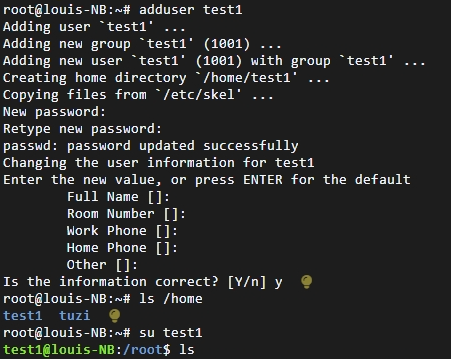
As you can see from the screenshot, the adduser command added a new user, a new group, and added the user to the group. Then it created a home directory for the new user. After that, it asked to set a new password for the newly added user. When you’re asked for more details, you can pre ENTER to skip. At the last, type in Y or y to finish the setting.
See? This way looks more straightforward and interactive, so we recommend it when you need. We firmly believe that the development of technology is to make us more efficient and convenient, and this is a good example.
