Your Cloud Storage Is Full Again. We’ve All Been There.
You opened Google Drive to upload a file, and instead got the dreaded “Storage full” warning. So you clicked through to the storage manager, stared at a wall of files with no real way to sort by size or find duplicates, and thought: I’ll just buy more storage.
Sound familiar? You’re not alone. Google One, Microsoft 365, Dropbox — they all give you 15 GB to 2 TB, and somehow it’s never enough. Photos auto-backup at 4K. Every Slack attachment lands in your Drive. Old project folders from two jobs ago are still sitting there, quietly eating gigabytes.
The monthly upgrade from 100 GB to 200 GB costs $2.99. From 2 TB to 5 TB? $99.99/year. It doesn’t sound like much until you realize you’re paying a recurring subscription to store files you’ll never open again.
Here’s the thing: you probably don’t need more storage. You need to clean what you have. And that’s harder than it sounds.
Why Cleaning Cloud Storage Is Painful
If this were a local drive, you’d be done in five minutes. Open File Explorer, sort by size, delete the big stuff. Find duplicates with a free tool. Done.
Cloud storage doesn’t work that way.
The web interfaces for Google Drive, OneDrive, and Dropbox are designed for uploading and sharing — not for bulk cleanup. You can sort by name or date modified, but sorting by file size is buried or missing entirely. There’s no “find duplicates” button. No “show me everything older than one year.” No way to multi-select 500 files across different folders and delete them in one click.
You can use the provider’s built-in storage manager (like Google’s “Manage Storage” page), but it’s slow, limited in filtering, and feels like an afterthought. The native desktop sync apps aren’t much better — they mirror your cloud files locally, but finding duplicates across a synced folder of 40,000 files isn’t exactly a built-in feature.
So most people do one of two things: they manually delete files one by one (tedious and incomplete), or they just pay for more storage (expensive and recurring).
Neither is a real solution.
Two Tools That Actually Clean Cloud Storage
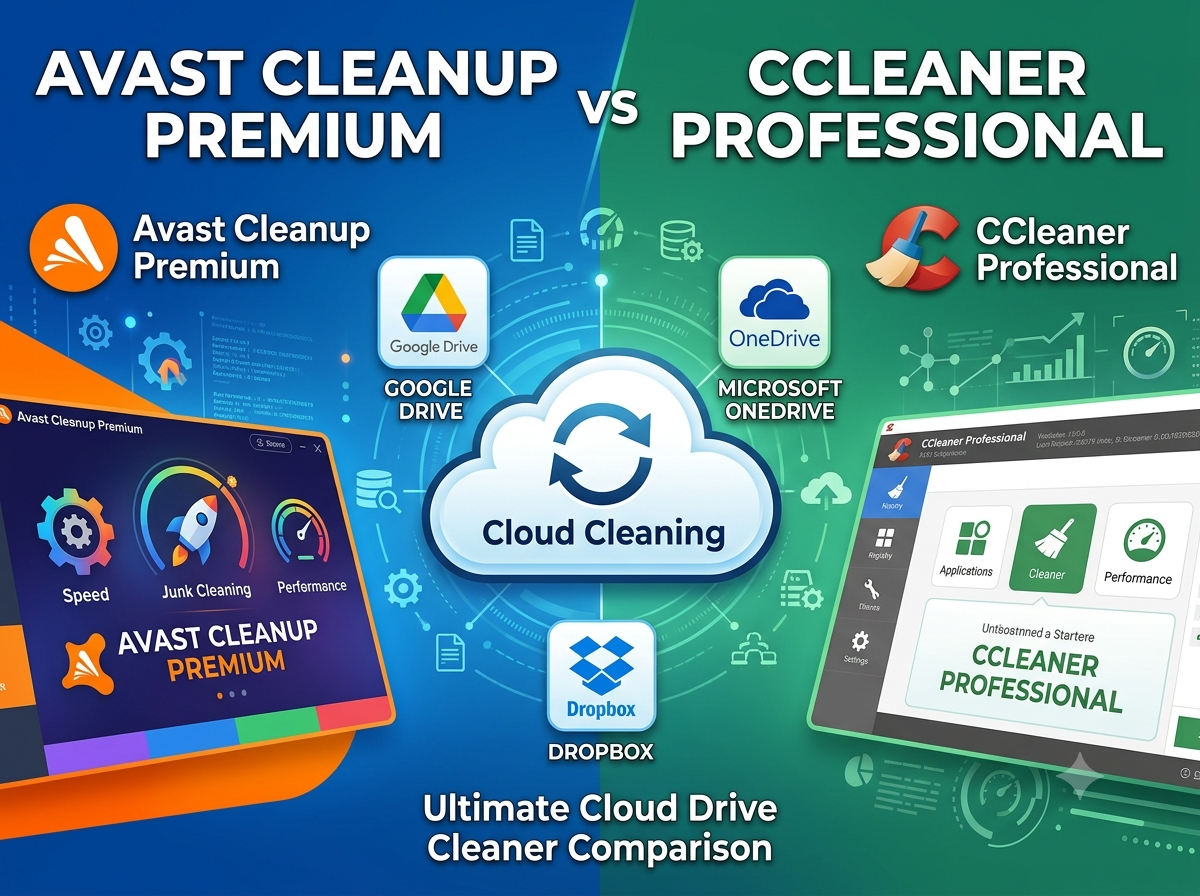
This is where dedicated cleanup tools come in. Both Avast Cleanup Premium and CCleaner Professional — names you probably know from local PC optimization — have built cloud storage cleaning into their products. They connect to your cloud provider via official OAuth APIs, scan your files for clutter (duplicates, large files, old files), and let you review and delete them from inside the app.
But they approach the problem quite differently. Let’s break it down.
Feature Comparison: Avast Cleanup Premium vs CCleaner Professional
| Feature / Metric | Avast Cleanup Premium (Cloud Cleaner) | CCleaner Professional (Cloud Drive Cleaner) |
|---|---|---|
| Operational Interface | 100% Native Client Integration — scanning, review, and deletion happen fully inside the desktop app UI | Client-Triggered Web App — clicking the tool launches your system browser to a secure web console |
| Desktop Platforms | Windows 11/10/8/7 + macOS (fully integrated) | Windows 11/10/8/7 only — macOS module not yet available |
| Mobile Platforms | Android (integrated into the mobile app’s Cloud Transfers module); iOS not supported due to sandboxing | No mobile module available on Android or iOS |
| Supported Cloud Ecosystems | Google Drive, Microsoft OneDrive, Dropbox | Google Drive, Microsoft OneDrive, Dropbox, Google Mail (Gmail) |
| Filtering Categories | Duplicates, Large Files, Old Files | Duplicates, Large Files, Old Files, Large Email Attachments & Spam |
| Security Mechanism | Single-session OAuth API token; auto-disconnects on exit; never reads file contents | Single-session OAuth API token; auto-disconnects on exit; never reads file contents |
Both tools use the same security model — single-session OAuth tokens that expire automatically — so neither stores your credentials or reads file contents. The differences are in where you do the work, what platforms you can use, and what you can clean.
How to Clean Your Drive Using Avast Cleanup Premium
Step 1: Access the Cloud Cleaner Module
Make sure you’re running the latest version of Avast Cleanup Premium. Launch the app on your PC or Mac, hover over the left sidebar menu, expand the Cleanup Premium sub-navigation, and click Cloud Cleaner.
Step 2: Authorize Secure Single-Session Access
Click Connect next to your preferred cloud platform (Google Drive, OneDrive, or Dropbox). This opens the official OAuth portal for that provider. Log in and authorize Avast to index your file metadata.
Avast does not read file contents — it only scans metadata like file names, sizes, and modification dates. The authorization token expires automatically when you log out, so there’s no persistent access to worry about.
Step 3: Analyze and Filter the Clutter
Click Scan Files. Avast’s algorithms sort your cloud data into three clear tabs:
- Duplicate files — exact copies taking up double (or triple) space
- Large files — the big offenders: old video backups, raw photos, installers
- Old files — anything untouched for over a year
Step 4: Purge Selected Files
Click Review next to any category. Select the checkboxes next to files you want to remove — outdated video backups, double-uploaded photos, that 2 GB PowerPoint from 2023. Click Clean to reclaim your cloud storage instantly.
Deletion requires manual confirmation for every batch, so nothing gets wiped without your explicit say-so.
Official guide: https://support.avast.com/en-ww/article/use-cleanup-premium
How to Clean Your Gmail and Drive via CCleaner Professional
Step 1: Trigger the External Browser Gateway
Open CCleaner Professional on Windows. Click Cloud Drive Cleaner in the left-hand navigation, then click Get Started. CCleaner Professional will launch your default web browser and navigate to its secure web console.
Note: This is a Windows-exclusive feature for now. macOS users won’t find the module available.
Step 2: Connect to Your Cloud Account (or Gmail)
On the web console, you’ll see modules for Google Drive, OneDrive, Dropbox, and Google Mail. Click Connect next to the service you want to clean. Log into your account and grant temporary permission to scan file or email metadata.
The Gmail integration is where CCleaner Professional sets itself apart — it’s the one capability Avast’s Cloud Cleaner doesn’t offer.
Step 3: Run the Specialized Scan
Once the scan completes, CCleaner Professional filters your data into categories:
- Large attachments — those 25 MB PDFs and video clips buried in email threads
- Old emails — messages you haven’t touched in ages
- Spam emails — the junk that somehow never got auto-deleted
- Duplicates, Large Files, Old Files — same categories as Avast, for cloud drive files
Step 4: Prune Attachments Safely
Review the results — the large attachments tab is usually where the biggest savings hide. Old work documents, event recordings, forwarded videos from years ago. Select the items you don’t need and click Remove. The deletion syncs directly with Google’s servers, so your Google One storage bar drops in real time.
As with Avast, every deletion requires your manual confirmation.
Official guide: https://support.ccleaner.com/s/article/learn-more-about-cloud-drive-cleaner?language=en_US
Which One Should You Choose?
The right pick depends on three things: your platform, your cleanup priorities, and how you like to work.
Choose Avast Cleanup Premium if:
- You’re on macOS. Avast’s Cloud Cleaner is fully integrated into the Mac desktop app. CCleaner Professional’s module isn’t available on macOS yet.
- You want everything in one window. Avast keeps scanning, review, and deletion entirely inside the native desktop app. No browser tabs, no context switching.
- You want mobile cleanup too. Avast integrates cloud cleaning into its Android app via the Cloud Transfers module. If you manage storage from your phone, this matters.
Choose CCleaner Professional if:
- You need to clean Gmail. This is CCleaner Professional’s standout feature — the ability to scan Gmail for large attachments, old emails, and spam. If your Google One storage is being eaten by email attachments (and it often is), CCleaner Professional is the only one of the two that addresses this.
- You’re on Windows and comfortable with a web-based workflow. CCleaner Professional launches your browser to do the actual work. Some people actually prefer this — the web console gives you more screen real estate for reviewing large file lists.
The honest takeaway:
Both tools do the core job — finding duplicates, large files, and old files in your cloud storage — about equally well. The filtering categories overlap significantly, and the security model is identical.
The real differentiator is scope. Avast gives you broader platform coverage (Mac, Android, native desktop). CCleaner Professional gives you deeper Google ecosystem coverage (Gmail attachments and spam on top of Drive).
If you’re a Mac user, the choice is straightforward — Avast. If you’re a Windows user whose Google One storage is being consumed by Gmail attachments, CCleaner Professional is worth a look.
Either way: try the free trial first. Both offer trial periods, and the best way to see if a tool fits your workflow is to run a scan on your actual cloud storage and see what comes up.
Where to Buy
If you’ve decided which tool fits your setup, here are the purchase options. Pick the store that matches your platform:
Avast Cleanup Premium
| Store | Platforms | Link |
|---|---|---|
| Amazon | PC only | Buy on Amazon |
| APSGO | PC & Mac | Buy on APSGO |
| G2A | PC & Mac & Android | Buy on G2A |
Mac users: skip Amazon (PC only) and go with APSGO or G2A. Android users: G2A is your only option here.
CCleaner Professional
| Store | Platforms | Link |
|---|---|---|
| APSGO | PC | Buy on APSGO |
| G2A | PC | Buy on G2A |
CCleaner Professional’s Cloud Drive Cleaner is Windows-only for now, so both stores offer the PC version.
FAQ
Does Avast or CCleaner Professional read my file contents?
No. Both tools use OAuth API tokens that only grant access to file metadata — names, sizes, modification dates, and folder structure. Neither tool reads or transmits the actual contents of your files. The tokens are single-session and expire automatically when you log out.
Will deleting files through these tools permanently remove them?
Yes — deletion is permanent and syncs directly with your cloud provider’s servers. However, both tools require manual confirmation before deleting anything, and you can review every file before approving. Files deleted from Google Drive also go to the Drive trash (where they remain for 30 days before permanent removal).
Can I clean multiple cloud accounts at once?
You can connect to multiple providers (Google Drive, OneDrive, Dropbox) in both tools, but you’ll typically scan and clean one at a time. Neither tool supports simultaneous multi-account scanning.
What happens if I delete a file that’s shared with someone else?
If you own the file, deleting it removes it for everyone it’s shared with. If someone else shared it with you, removing it from your Drive just removes your access — the original owner’s copy is unaffected. Both tools show file details before deletion, so you can check sharing status.
Do I need the premium/paid version?
Yes. Cloud Cleaner is a premium feature in both Avast Cleanup Premium and CCleaner Professional. The free versions of both tools offer local cleanup only. That said, both offer free trials — run a scan during the trial to see how much space you can actually reclaim before committing.
Is it worth paying for a cleanup tool instead of just using Google’s built-in storage manager?
It depends on how much clutter you have. Google’s built-in storage manager is fine for a quick once-a-year purge of obvious large files. But if you have thousands of duplicates scattered across folders, or years of old files that the built-in tool doesn’t surface, a dedicated cleanup tool will find what the web interface can’t — and save you the manual hunting. For a one-time cleanup, a free trial might be all you need.
