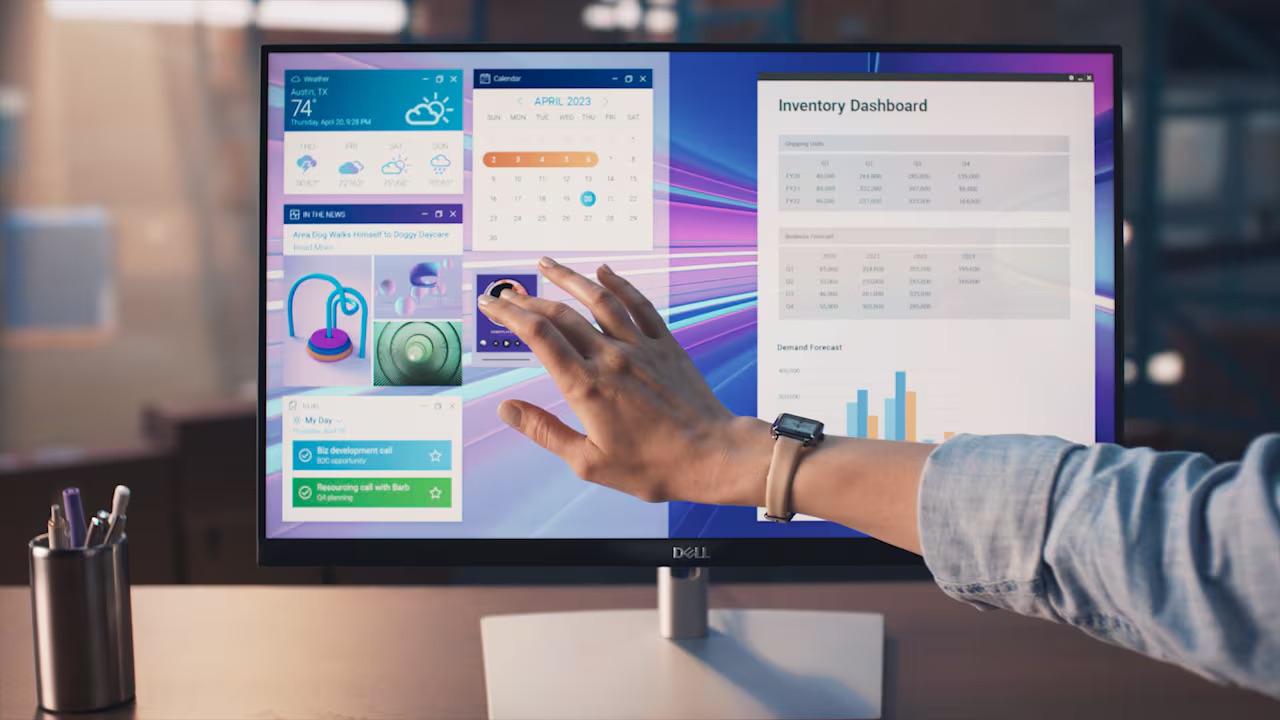
You just set up your Dell P2424HT, plugged in via HDMI, DisplayPort, or USB-C, and the picture looks great. But there’s no sound. The built-in speaker seems completely dead. You’ve checked Windows audio settings, swapped cables, maybe even updated drivers — still nothing.
Before you go down the troubleshooting rabbit hole, here’s the one thing most people miss: the P2424HT’s built-in speaker is off by default. It’s not broken. It’s just not turned on.
The P2424HT’s 3W Built-in Speaker
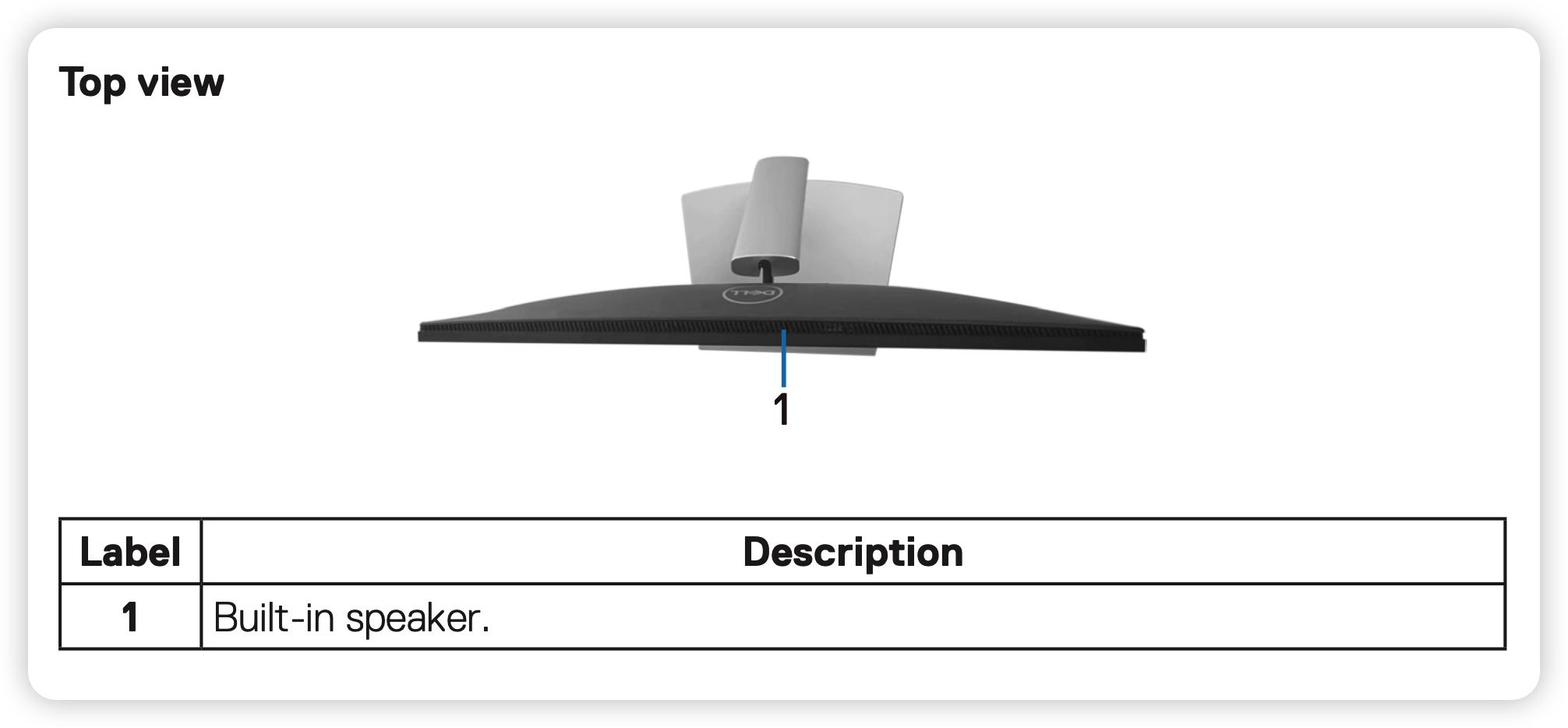
The Dell P2424HT is a 24-inch Full HD touch monitor with an integrated USB-C hub and RJ45 Ethernet port. It also includes a single 3W built-in speaker located at the top of the monitor enclosure.
Audio can be delivered through any of the three video inputs:
- HDMI — carries both video and audio
- DisplayPort (DP) — carries both video and audio
- USB-C — carries video, audio, data, and up to 90W power delivery
So the hardware supports audio out of the box. The speaker is physically there. The signal path works. The problem is purely a settings issue.
Why There’s No Sound: The Speaker Is Off by Default
This is the key detail buried in the P2424HT user manual:
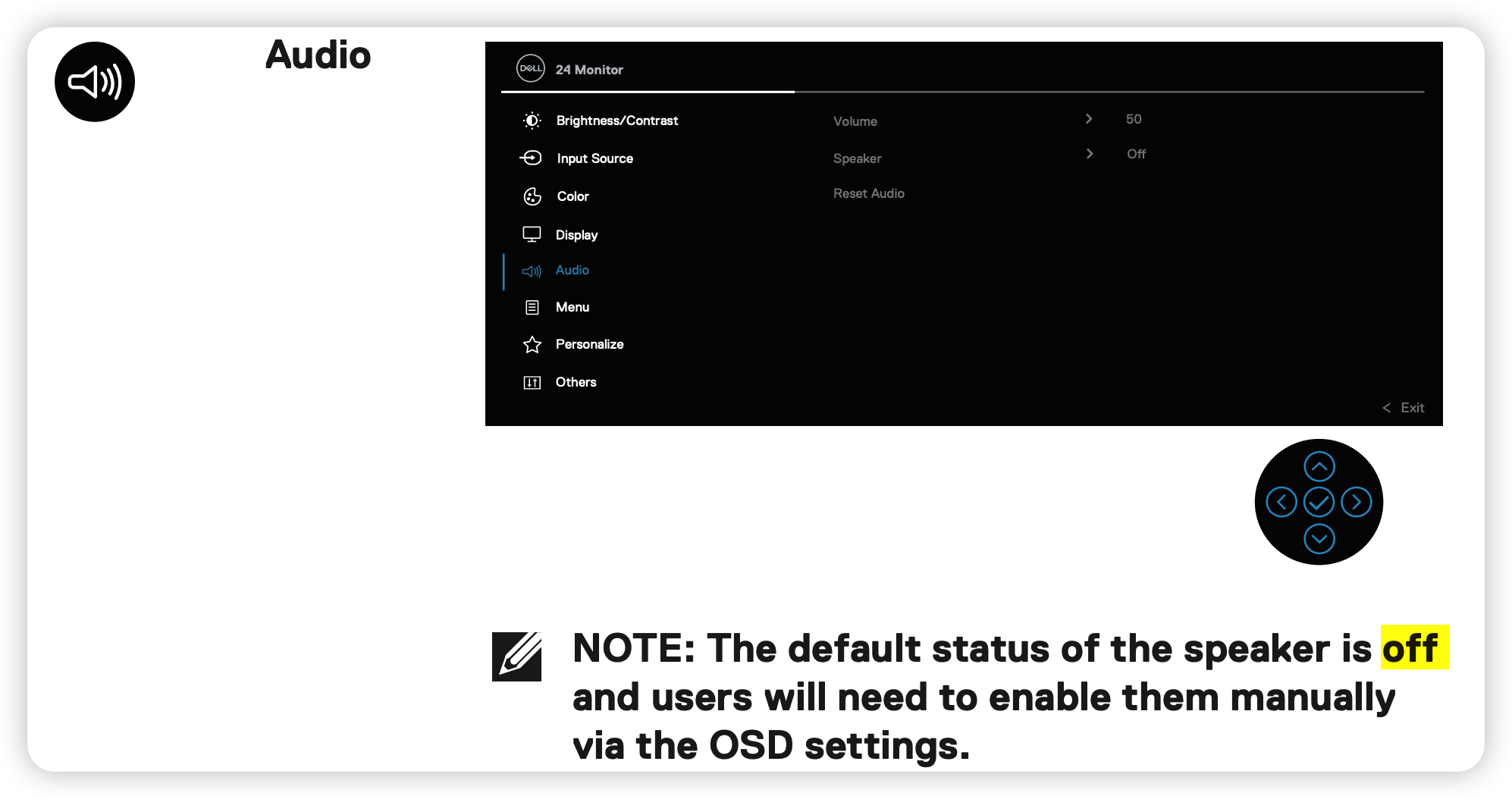
“The default status of the speaker is off and users will need to enable them manually via the OSD settings.”
— Dell P2424HT User Manual, Audio section
Dell ships the P2424HT with the speaker disabled. This means that even if your OS correctly detects the monitor as an audio output device and sends audio over the cable, the monitor simply won’t play it until you flip the toggle.
This design choice makes sense for office environments where most users prefer external speakers or headphones. But for anyone expecting plug-and-play audio, it’s a confusing gotcha — especially since Windows will happily list “DELL P2424HT” as an available audio device, giving the impression everything should work.
How to Enable the Speaker (10-Second Fix)
You don’t need to install anything or change any Windows settings. Just use the monitor’s physical joystick button to access the OSD (On-Screen Display) menu:
- Press the joystick button on the bottom-right of the monitor to open the OSD menu
- Navigate to Audio — use the joystick to highlight the Audio menu item and press to enter
- Select Speaker — inside the Audio submenu, you’ll see three options: Volume, Speaker, and Reset Audio. Navigate to Speaker
- Switch to On — toggle the Speaker setting from Off to On
That’s it. Audio should start playing immediately from the monitor’s built-in speaker.
Once enabled, you can also adjust volume within the same Audio menu, or use your operating system’s volume control — both will work.
Common Mistakes to Avoid
Don’t waste time on these — they won’t fix the issue:
| What people try | Why it doesn’t help |
|---|---|
| Changing Windows default audio device | The OS already routes audio to the monitor; the monitor just isn’t playing it |
| Updating audio drivers | This is a monitor OSD setting, not a driver issue |
| Swapping HDMI/DP/USB-C cables | All three inputs carry audio; the cable isn’t the problem |
| Checking Windows volume mixer | Volume is fine — the monitor is simply muted at the hardware level |
The only fix that matters is enabling the speaker in the monitor’s OSD menu. Everything else is noise.
If Sound Still Doesn’t Work After Enabling the Speaker
If you’ve toggled the Speaker setting to On and still get no audio, check these secondary issues:
- Windows audio output device — Confirm “DELL P2424HT” is selected as the default playback device in Windows Settings → System → Sound
- OSD Volume level — Make sure the Volume setting in the OSD Audio menu isn’t at 0%
- Cable type — If you’re using a DP-to-HDMI adapter or a USB-C dock that doesn’t pass audio, the signal may not reach the monitor. Use a direct connection instead
- Reset Audio — In the OSD Audio menu, select “Reset Audio” to restore all audio defaults, then re-enable the Speaker
If none of these resolve the issue, the speaker hardware itself may be faulty — contact Dell support.
Quick Reference
| Setting | Default | Location |
|---|---|---|
| Speaker | Off | OSD → Audio → Speaker |
| Volume | 50% | OSD → Audio → Volume |
| Reset Audio | — | OSD → Audio → Reset Audio |
References
- Dell P2424HT User Manual — Audio Section (official Dell documentation confirming default speaker Off)
- Dell P2424HT Product Page
If you’re setting up a Dell monitor with a docking station, check out DockSelector for compatibility details on Dell docks and laptops.