
Do you work remotely using a remote control application like Teamviewer? Have you ever encountered the situation that, when the monitor of remote PC is on, the remote control works fine, but if you turn off the monitor, the picture from remote PC freezes or turns out a black screen?
We have seen a lot of cases online, such as:
- If I turn off the monitor on remote pc, picture on the screen stop working — TeamViewer Support
- Abnormal display when the remote PC has no monitor turned on · Issue #6682 · rustdesk/rustdesk
To be honest, such an experience really causes bad feelings. We don’t want to keep the monitor on, on the one hand, to save power, and on the other hand, to protect our privacy from others.
Actually, this is neither a bug in remote control applications, nor is it a hardware failure. They are just working as designed. Confused, right? Let’s dive into the root cause, and find out the resolution.
How remote control applications work?
Many of us have used one or more remote control applications before, but only few understand how they work. It’s important to know the steps below, before you can understand the root cause.

- Install the App: Both devices (the one controlling and the one being controlled) need the remote control app installed.
- Get an ID and Password: The device being controlled (host) gets a unique ID and password.
- Enter ID and Password: The user on the controlling device (client) enters the host’s ID and password to start a session.
- Connect via Cloud Servers: The app’s servers help set up a secure connection between the two devices.
- Share the Screen: The host device sends its screen to the client as a live video.
- Send Commands: The client sends mouse clicks and keyboard inputs to control the host device.
Step 5 is the key point, and it can be divided into 2 more detailed steps:
- The host device begins streaming its screen to the client in real-time by capturing its display and sending it as compressed image data.
- The client renders the host’s screen, allowing the user to view it on their own device.
OK. Now you’re very close to the root cause, even that you may have caught that point. Please remember these steps, and let’s go to the next chapter.
Why we have to keep the monitor on to make remote control work?
I guess you have noticed the bold content in the previous section - “capturing its display”. This means that the remote control software does not generate the system screen by itself, but “captures” the screen that is originally to be displayed on the monitor and sends it to the control end. When the system stops outputting the screen to the display, the remote control software cannot capture the new screen.
The result is that when you connect to the remote PC through the software and then turn off its monitor, the screen displayed on the control end will freeze, and when you turn off the remote PC’s monitor first and then connect through the software, you are likely to see a black screen.
Then a new question arises: the PC’s graphics card, system, and software are still running, so why no new screen is generated after turning off the monitor?
To explain this, we have to introduce 3 concepts:
- EDID
- The full name of monitor EDID is Extended Display Identification Data. EDID is a standard data format that describes the capabilities of a monitor (such as resolution, color characteristics, etc.) through a communication protocol between the monitor and the host, allowing the host to adapt and optimize the display output. This data helps the operating system and drivers to properly configure the display device.
- Hot Plug Detection (HPD)
- DisplayPort (DP) and HDMI interfaces both have a dedicated pin for Hot Plug Detection (HPD). When the monitor is powered on or connected, the HPD pin will signal a change, notifying the graphics card that a display device is connected. If the monitor is turned off or disconnected, the HPD status will change, and the graphics card can detect the monitor’s status based on this change.
- Display Data Channel (DDC)
- DDC is a communication protocol used to transmit control information between display devices (such as monitors) and the host (such as graphics cards). Through the DDC channel, the graphics card can read the EDID data from the monitor, including the supported resolution, refresh rate, and other information. This information helps the graphics card configure itself correctly while the monitor is in operation.
Combining technologies such as EDID, HPD, and DDC enables communication between monitors and graphics cards. As modern electronic products increasingly focus on energy efficiency and environmental protection, graphics cards, being significant energy consumers, naturally become a key target. When a monitor is disconnected from the graphics card, the graphics card assumes it no longer needs to operate, thus stopping its rendering and entering a low-power mode. This very mechanism results in remote software being unable to capture new pictures.
How to remotely control a PC while its monitor is turned off?
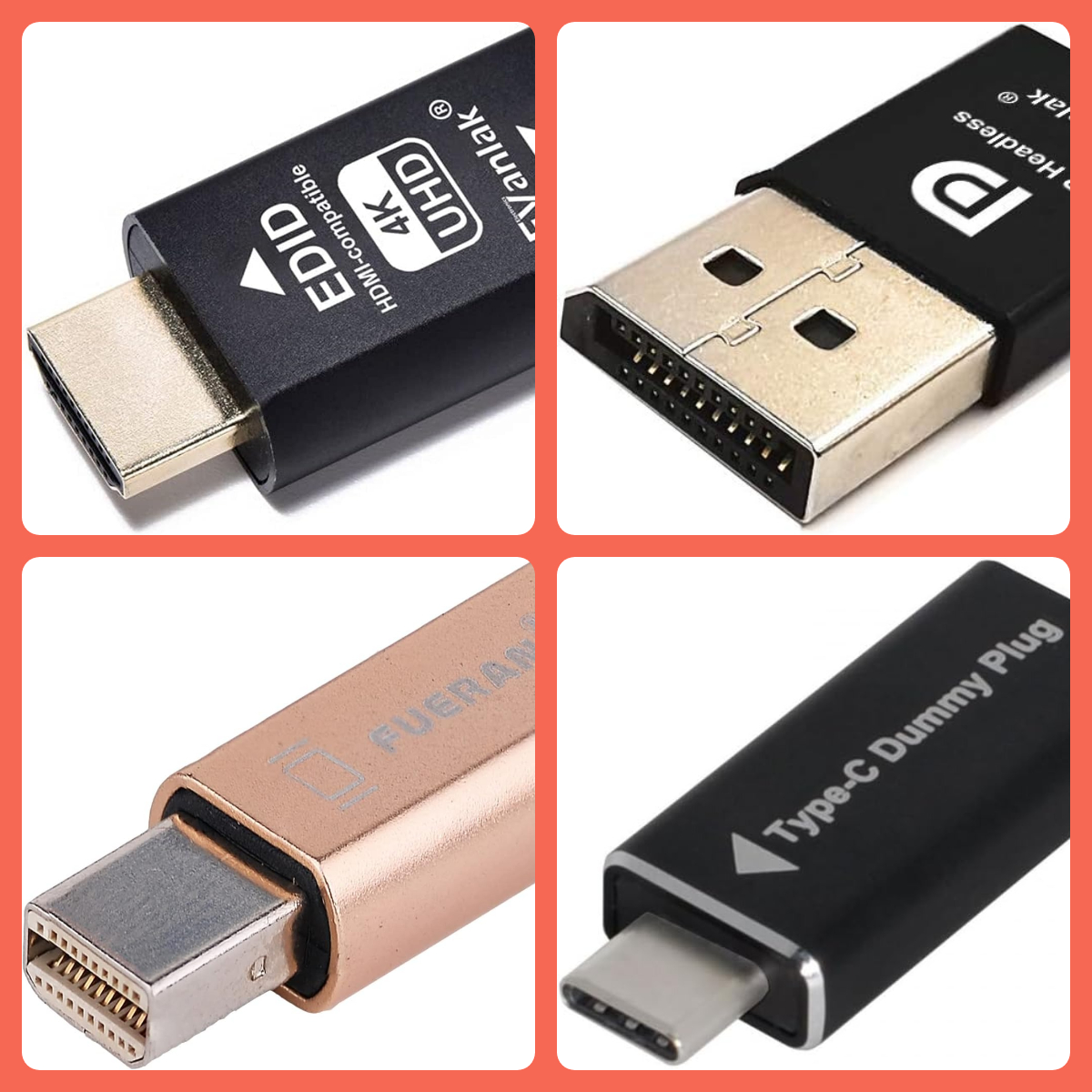
Where there is demand, there is a market. To solve this problem, we can use a small accessory for deceiving graphics cards - EDID emulator.
How does An EDID emulator work?
It simulates the EDID information of a display for a graphics card or other video source device. Its primary function is to provide a fake or pre-defined EDID to the video source(generally a GPU), making it believe that a monitor is connected, even when there is no physical monitor attached. This can be particularly useful in various scenarios, such as server maintenance, remote desktop setups, and testing environments.
There are many EDID emulators on the market, and you can choose according to the resolution and interface. Generally speaking, we recommend choosing a 4K resolution model because it is backward compatible. The rest depends on the video interface of your controlled PC, for example:
