
Nowadays, laptops are commonly equipped with wireless network cards, and the use of wired networks is becoming less frequent. However, wireless networks still lag slightly behind in terms of transmission speed and stability. In some office environments with high requirements for information security, wireless networks may not even be provided, so Ethernet cables are far from being phased out.
When both wired and wireless networks are connected simultaneously, Windows assigns a lower metric to the wired connection by default, meaning that the wired connection has a higher priority than the wireless one. The system does not actively disconnect the wireless connection. However, we can configure the BIOS to automatically disable Wi-Fi when an Ethernet cable is connected, achieving benefits such as energy saving, enhanced network stability, and reduced information security risks. For more Dell BIOS tips, see how to stop your Dell laptop from powering on when you open the lid and how to turn off the integrated graphics card on Dell rack workstations.
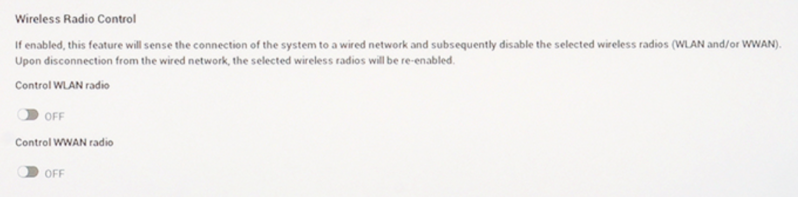
First, power on the laptop and press F2 key to enter the BIOS. Click on “Connection,” and on the right side, find “Wireless Radio Control.” Enable “Control WLAN radio” or “Control WWAN Radio” (for cellular data).
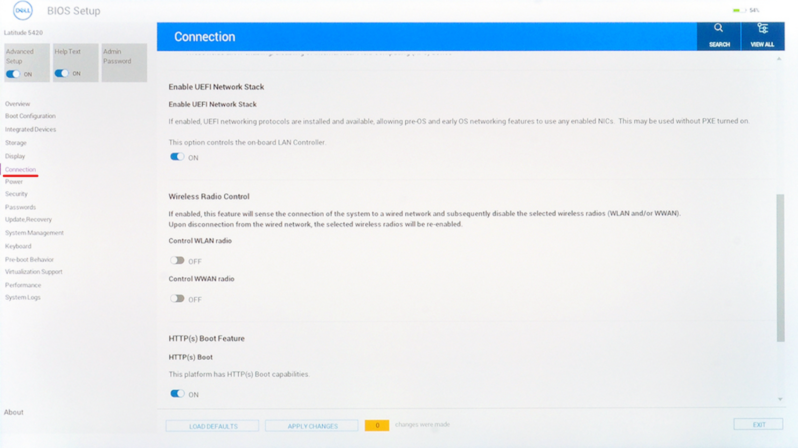
After making the changes, click “APPLY CHANGES” to save the settings, and then “EXIT” to make the changes effective.
If you wish to revert to the default settings later, simply re-enter the BIOS and disable “Wireless Radio Control,” or reset the BIOS.
Article quoted and translated from pcoic.com
