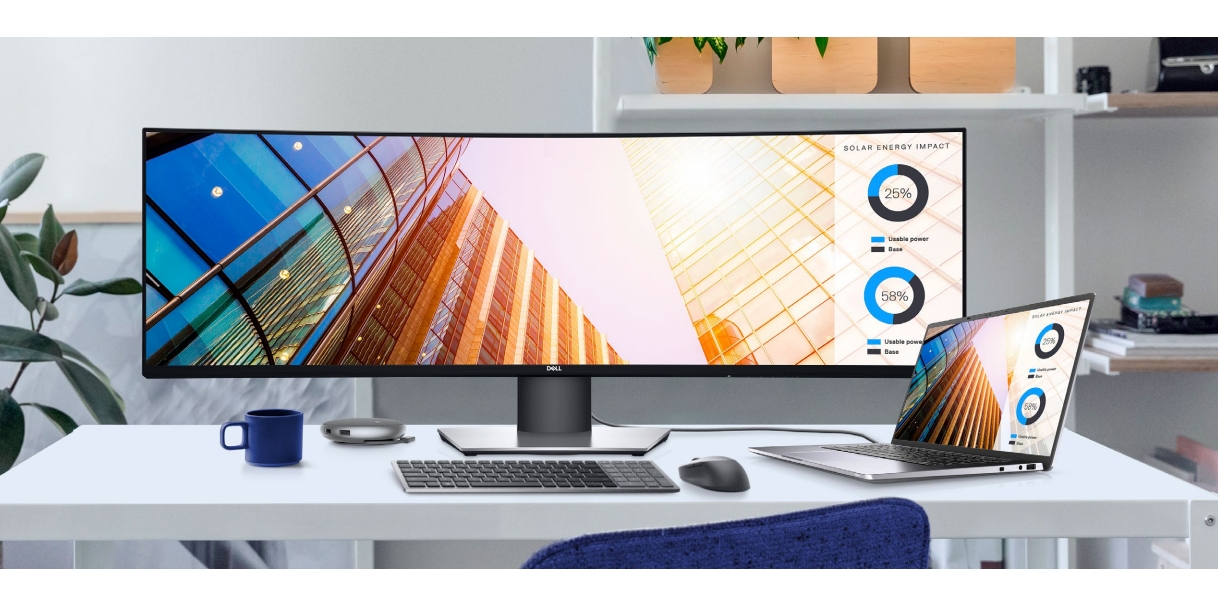
More and more modern wireless keyboards have the ability to connect to and switch between multiple devices with a click. This is so-called “seamless connectivity”, and it does improve the work efficiency. Dell has many multi-device keyboards. Let’s take KB700 as the example to explore how this works.
Dell KB700 wireless keyboard can be connected to up to 3 devices simultaneously, 1 by 2.4 GHz USB receiver dongle, and 2 by Bluetooth connections. Dell has designed a Connection Mode Switch Button specifically on the top right of the keyboard.
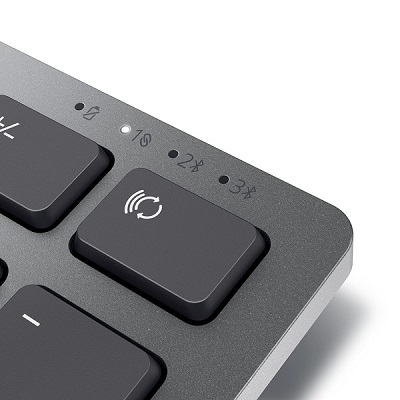
The Connection Mode Switch Button has 2 uses:
Setting up Bluetooth connections.
As mentioned above, Dell KB700 has two connection modes, and actually most of multi-device keyboards are the same. The device where USB receiver dongle is plugged in is automaticlly connected, but Bluetooth connections need manual setup.
You can read and follow the steps in page 13 of Dell KB700 User’s Guide.
Quick switch between paired devices, including the one connected by USB receiver dongle.
After pairing with Bluetooth, the keyboard will automatically connect to paired devices once they were close enough to be detected. Users have nothing to do but switch to target device by clicking on the Connection Mode Switch Button.
Most multi-device keyboards have the similar design, click here to find one that fits your need.
If you want more discounts, don’t miss 30-day free trail of Amazon Prime or 6-month free trail of Prime for Young Adults.
