Dell Dock Compatibility Chart (PDF): Find Your Model in 2 Minutes
Looking for the official Dell Dock Compatibility Chart (PDF)? Learn to read Yes/No markings and superscripts, then match any Dell dock to your laptop in minutes.

- Louis
- 4 min read
- Affiliate Disclosure

Dell has a broad product lineup. Docking stations play an important role in Dell’s ecosystem. There is no doubt that Dell docks work best with Dell laptops.
However, with emerging technologies, new and old docks and laptops are not necessarily compatible. That is the purpose of the official Dell Dock Compatibility Chart. If you’re also deciding on a Dell monitor, see which Dell monitors are compatible with macOS and our Dell P2425H vs P2425HE comparison. And if you’re wondering about connectivity, our guide on whether your Type-C cable can transfer data clears up a common source of confusion with dock setups.
In this article, We’ll explain how to read and understand the chart, and I’ll also introduce a tool, DockSelector, to make your decision easier.
How to Get the Chart?
The chart is officially named Dell Pro Docks Compatibility Guide. It’s a PDF file, and you can download it by clicking here.
After downloading, you can open it with any PDF reader. Browsers like Chrome and Microsoft Edge also work well if you don’t have a dedicated PDF reader installed.
What’s in the Chart?
On the first page, you’ll find a brief introduction to the chart. There are two sections:
New Dell Pro Docks: These are the latest docks from Dell, designed to work with the newest Dell laptops. So far, there are 7 new docks:
- Dell Pro Dock: WD25, WD25Z, WD25TB4, WD25TB5
- Dell Pro Smart Dock: SD25, SD25TB4, SD25TB5
Previous Generation Dell Docks: These are older docks that have reached end of life in Dell’s roadmap but may still be available through other channels, such as Amazon. These docks generally work well with Dell laptops from previous generations.
The chart is updated regularly by Dell. Beginning on the second page, you’ll find compatibility tables that show how each dock works with each model of Dell laptop.
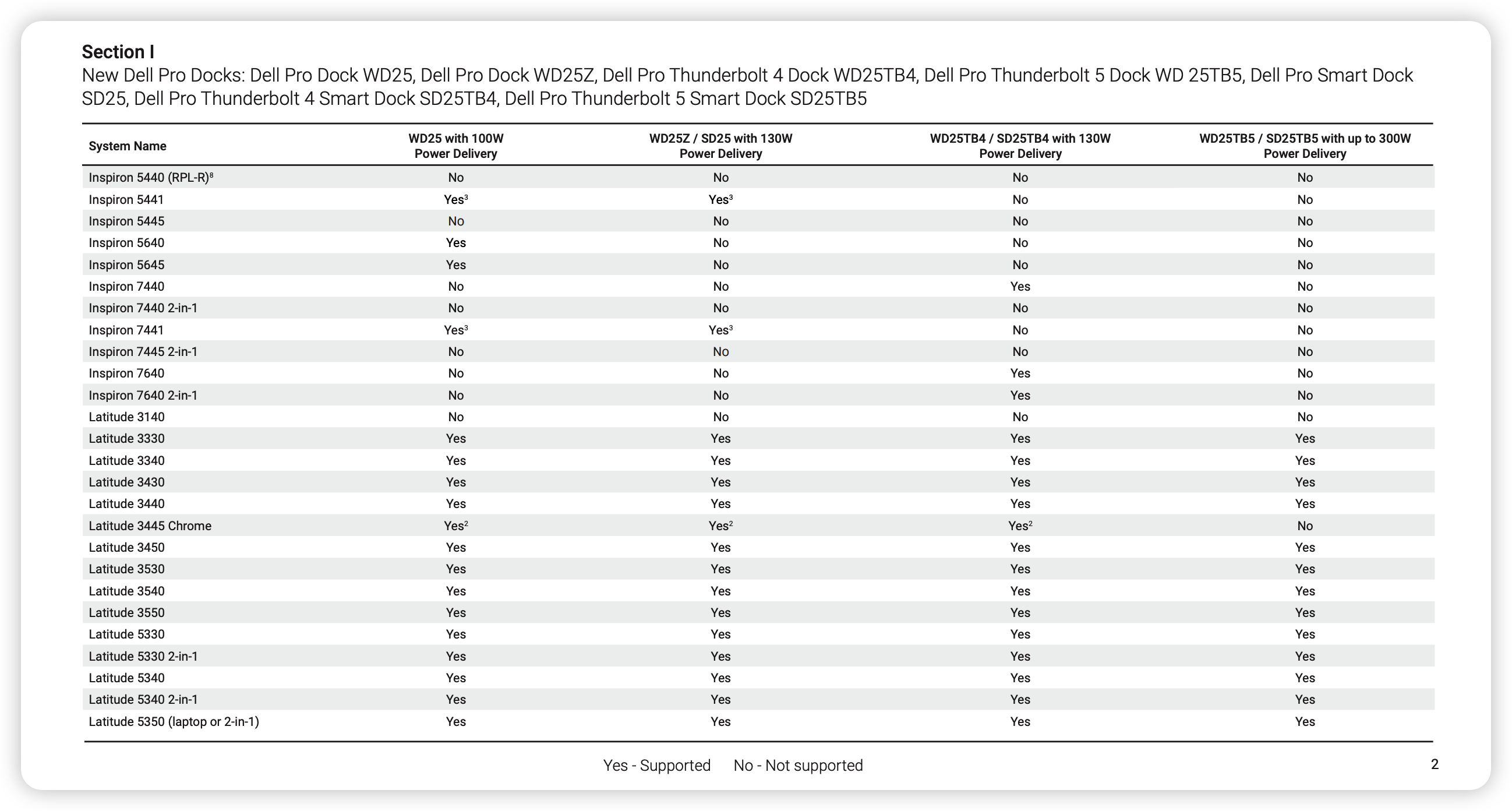
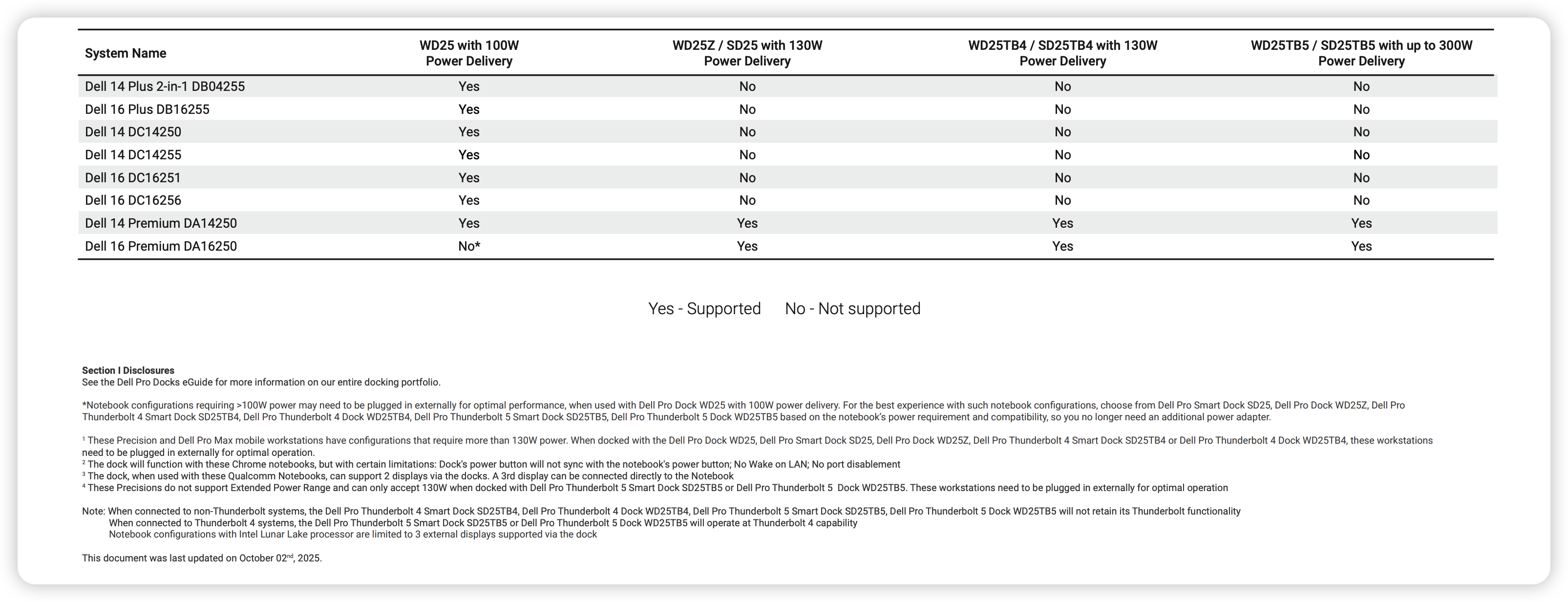
At the end of each section, there are disclosures related to the information above. As you can see, the compatibility indicators in the chart are not limited to Yes and No; they may also include Yes or No with superscripts. These disclosures are an important supplement to the chart.
How to Read the Chart?
As you can see, the top row of the chart lists the dock models, and the left column lists the laptop models. The cells in the chart are filled with Yes and No.
Does Yes mean the dock is fully compatible with the laptop, and does No mean the dock is not compatible? Not exactly. You should interpret them according to the following rules:
If a cell shows Yes, it means the dock is fully compatible with the laptop.
If a cell shows No, it means the dock is not compatible with the laptop.
If a cell shows Yes or No with a superscript, it indicates limited or partial compatibility. This means the dock can be used with the laptop, but some features may not function as expected. You should refer to the disclosures for detailed explanations.
A Better Way to Find a Dock for Your Laptop
Reading the chart and its lengthy disclosures can be time-consuming. There’s a tool called DockSelector that can help you find a suitable dock for your laptop with just a few clicks.
You can visit DockSelector on multiple platforms, including desktop, mobile, and tablet devices. It has a responsive design, so it works well on any screen size.
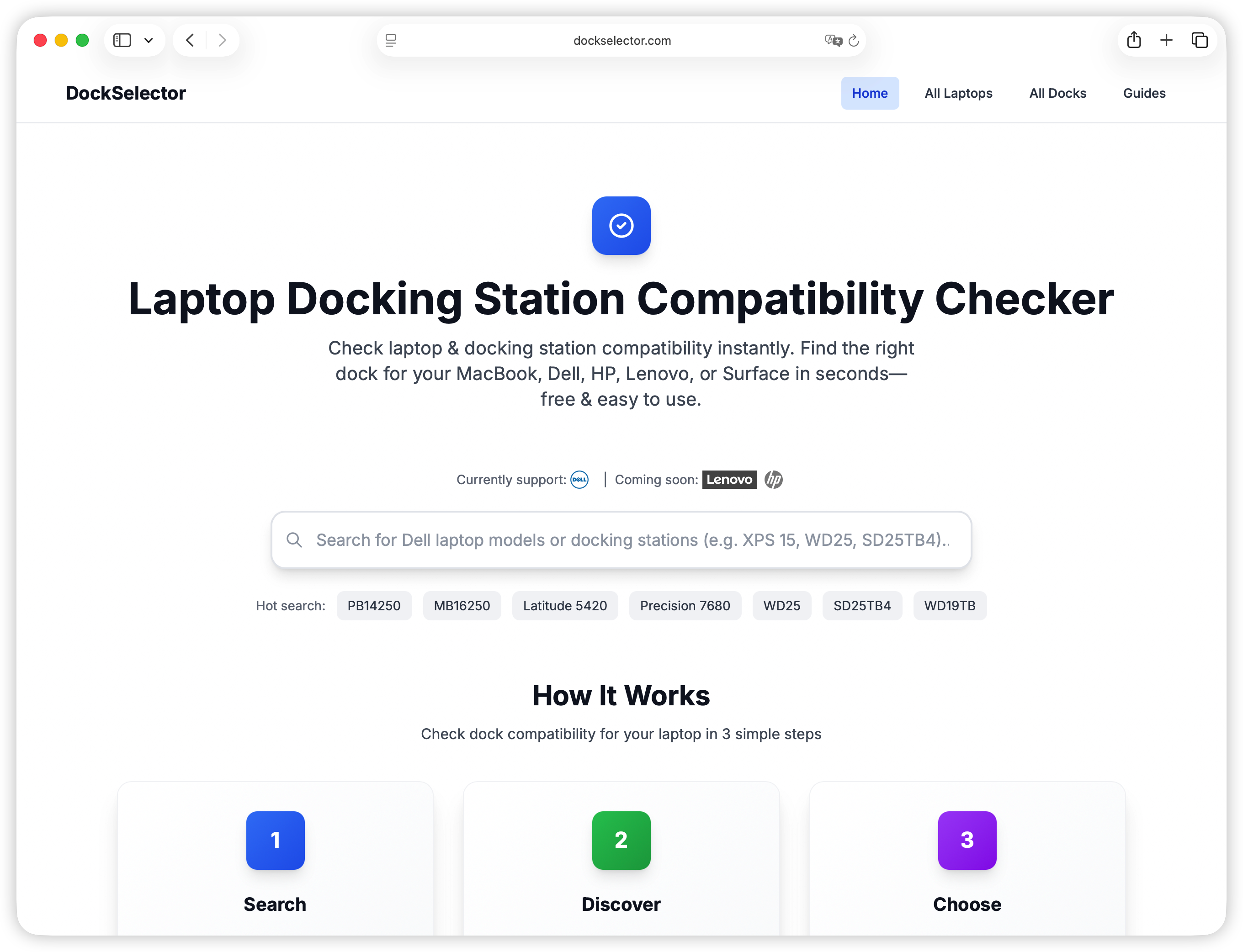
Using DockSelector is simple. The homepage provides a search box where you can enter your laptop model. Click on the suggested search result, and you’ll see a list of compatible docks, including both fully compatible and partially compatible options.
In addition to compatibility information, DockSelector also provides detailed information about each dock, including specifications, key features, and product links on Amazon.
If you want more in-depth information, such as comparisons between different docks, you can visit the Guides section.
Currently, DockSelector mainly focuses on Dell laptops and docks, but it plans to expand to other brands in the future. If you’re interested in Dell docks and laptops, DockSelector is a practical choice right now.
