If you’ve ever experienced screen tearing, stuttering, or input lag in games, it’s likely due to your GPU and monitor being “out of sync.” This guide explains G-SYNC, FreeSync, and Adaptive Sync in plain language to help you make informed decisions.
Part 1: Why Do We Need Dynamic Sync?
The Core Issue: Traditional monitors refresh at a fixed rate (e.g., 60Hz), while GPU frame rates fluctuate with scene complexity. When these rates mismatch, three problems arise:
- Screen Tearing: The monitor displays parts of two different frames simultaneously.
- Stuttering: Forced waits from V-Sync cause noticeable delays.
- Frame Rate Drops: Sudden dips in FPS create jarring lag.
The Solution: Dynamic sync technologies adjust the monitor’s refresh rate in real time to match the GPU’s output, eliminating tearing while reducing latency. Think of it as a “walkie-talkie” system that keeps both devices in perfect rhythm.
Part 2: The Big Three Sync Technologies
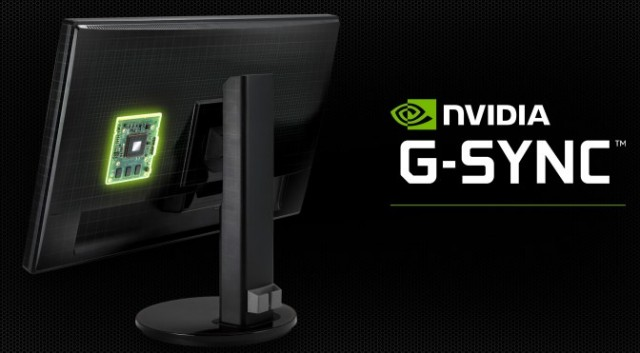
- How It Works: Uses a proprietary hardware module in the monitor to control refresh rates.
- Key Advantages:
- Ultra-wide VRR range (typically 1Hz–240Hz).
- Superior stability during rapid FPS fluctuations.
- Full HDR support (G-SYNC Ultimate only).
- Caveats:
- Requires certified monitors (usually pricier).
- Best with NVIDIA GPUs (GTX 10-series or newer).
2. AMD FreeSync
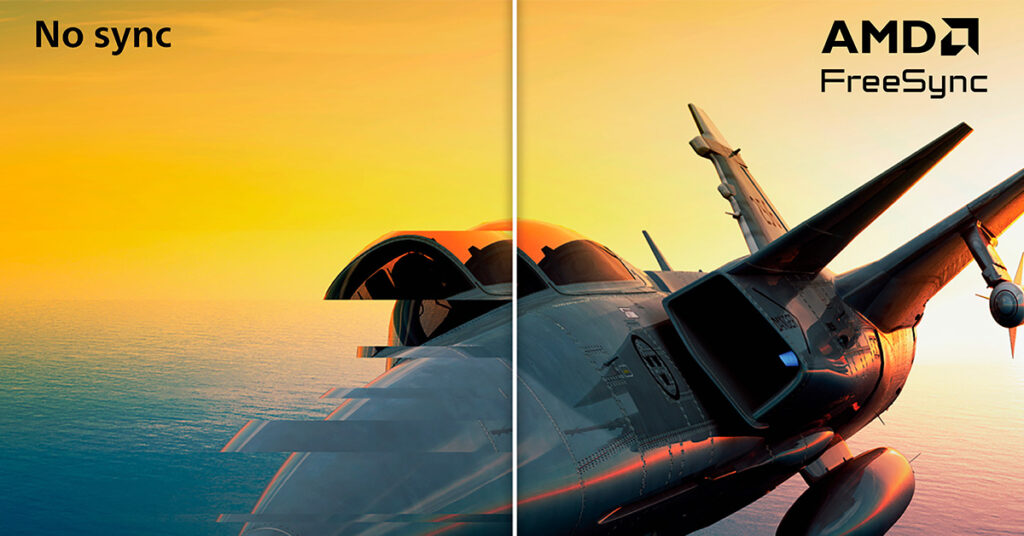
- Foundation: Built on VESA’s Adaptive Sync standard.
- Certification Tiers:
- FreeSync: Basic sync (48Hz–max refresh rate).
- Premium: ≥120Hz + Low Framerate Compensation (LFC).
- Premium Pro: Adds HDR and wide color gamut requirements.
- Advantages:
- Cost-effective, works over HDMI/DP.
- Compatible with AMD, NVIDIA (GTX 10-series+), and Intel GPUs.
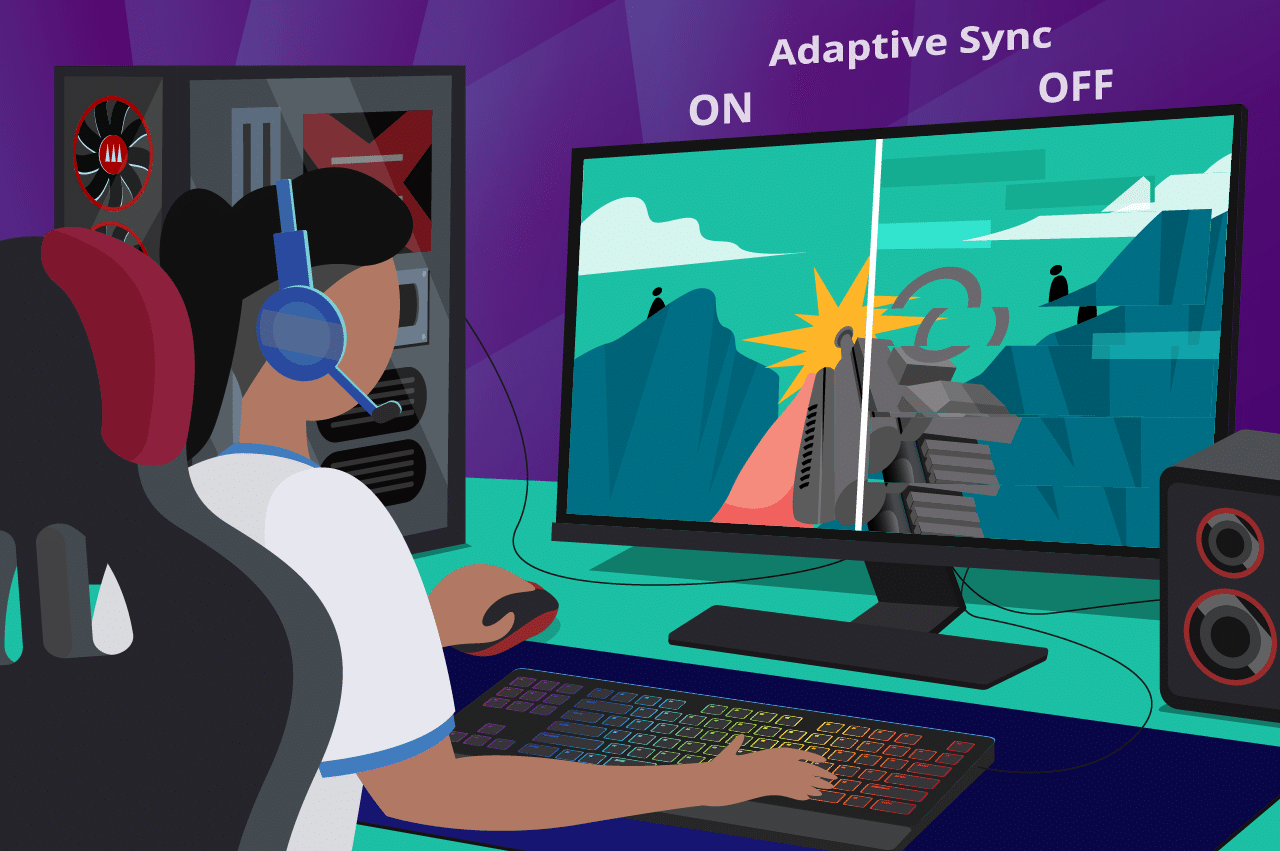
- Industry Standard: Native to DisplayPort 1.2a and later.
- Current Status:
- Basis for HDMI 2.1’s VRR feature.
- Performance varies by manufacturer implementation.
- Widely compatible but lacks strict certification.
Part 3: Key Purchasing Criteria
1. Match Your GPU
- NVIDIA Users: Prioritize G-SYNC Compatible monitors.
- AMD Users: Opt for FreeSync Premium Pro models.
- Multi-Platform Users: Ensure HDMI 2.1 VRR support.
2. Critical Specs to Check
- VRR Range: Ideally 48Hz–max refresh rate (e.g., 48–144Hz).
- LFC (Low Framerate Compensation): Doubles frames when FPS drops below the minimum VRR threshold.
- HDR Certification: Look for DisplayHDR 600/1000 badges (avoid unverified “HDR400” claims).
3. Port Selection
- DisplayPort 1.4: Essential for 4K 144Hz/2K 240Hz (supports DSC compression).
- HDMI 2.1: Console gamers should prioritize full 48Gbps bandwidth.
- USB-C: Laptop users need DP Alt Mode support.
Part 4: Practical Buying Advice
High-End Budget ($800+)
Choose a 4K high-refresh monitor with G-SYNC Ultimate, paired with a flagship GPU (e.g., RTX 4090/RX 7900 XTX) for 4K 120Hz+HDR experiences. Ensure your GPU can handle the resolution.
Mid-Range ($300–$500)
A FreeSync Premium Pro 2K monitor works well with mid-tier GPUs (e.g., RTX 4070/RX 7800 XT). Prioritize models that allow simultaneous HDR+VRR activation.
Budget-Friendly ($150–$250)
Look for Adaptive Sync-certified 1080p 144Hz monitors paired with entry-level GPUs (e.g., RTX 3050/RX 6600). Verify the actual VRR range covers 48–144Hz.
View popular monitors with different screen sync technologies in Amazon:
Important Notes
- Compatibility: Some “G-SYNC Compatible” monitors may exhibit brightness flickering—check professional reviews.
- HDR Realism: Avoid non-certified “HDR400” displays; they offer minimal improvement.
- Cable Quality: Cheap HDMI cables can disable VRR functionality.
Performance Insight: In stable FPS scenarios, all three technologies perform within 5% of each other. However, during extreme FPS swings (e.g., 40↔120fps), G-SYNC maintains a ~15% latency advantage. For most gamers, choosing a sync technology aligned with their GPU matters more than chasing marginal gains.
Trend Watch: As HDMI 2.1 adoption grows, mid-range monitors increasingly combine FreeSync Premium Pro with HDMI VRR. G-SYNC continues to dominate the premium segment, while Adaptive Sync remains the universal baseline.
