Many Dell laptops come with a default setting that automatically powers on the device when the lid is opened. While this feature can be convenient for some users, others may find it unnecessary or even disruptive. If you’d prefer to manually control when your laptop turns on, here’s how to disable this feature. For other Dell BIOS tweaks, see our guides on automatically disabling Wi-Fi when Ethernet is connected and turning off the integrated graphics card on Dell rack workstations.
Steps to Disable “Power On Lid Open”
It’s worth noting that, Dell computers have 3 BIOS interfaces. Some models have Lid Switch under the BIOS, which only controls whether the machine responds to opening and closing the lid. Power On Lid Open is the function of automatically turning on the computer when the lid is opened.
Restart your Dell laptop. As the system boots up, repeatedly press the F2 key to enter the BIOS/UEFI menu.
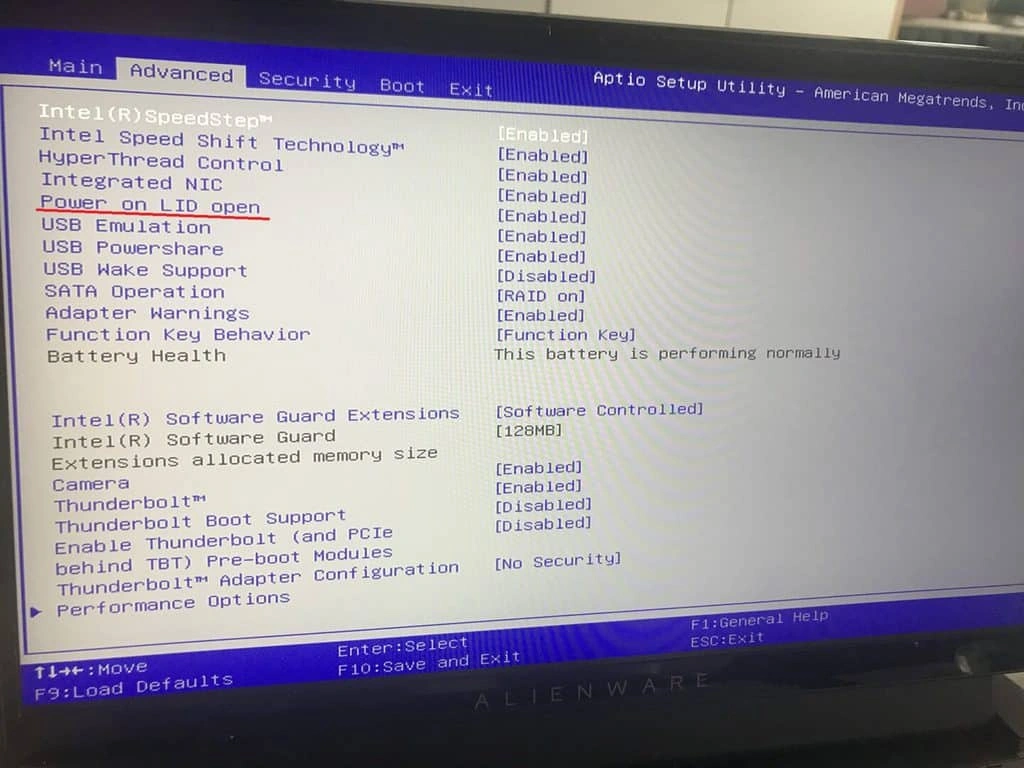
BIOS 1
Change the Advanced – Power on LID open option from Enabled to Disabled, and then press F10 to save and exit to make it effective.
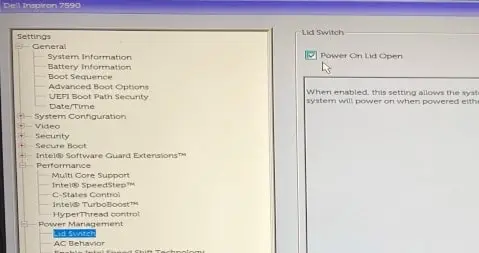
BIOS 2
Go to Power Management – Lid Switch and uncheck the box on the right for Power On Lid Open. Click the Apply button below, click OK to save the settings, and finally click Exit to exit BIOS.
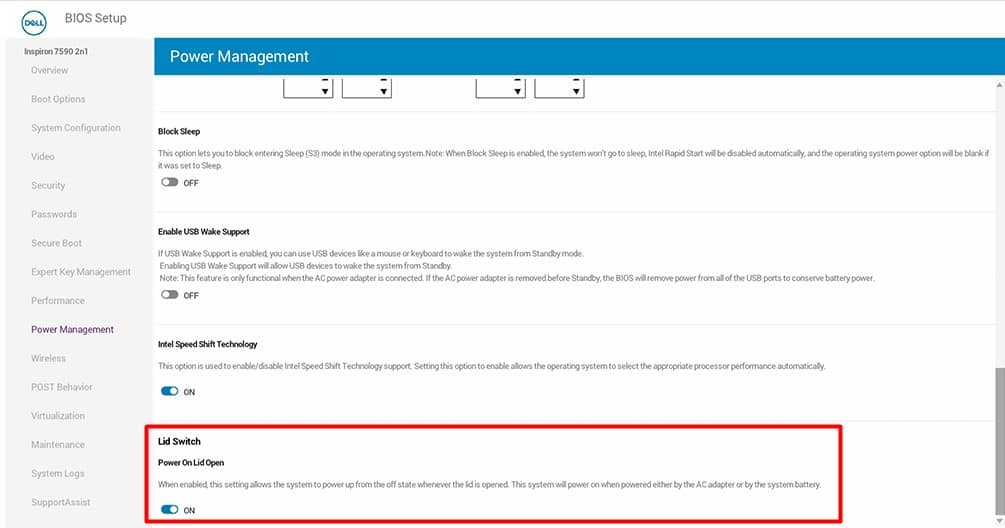
BIOS 3
Enter Power Management (some models display Power) and turn off Lid Switch – Power On Lid Open. Click Apply Changes to save the settings, and finally click Exit to exit BIOS.
Why Disable This Feature?
Disabling the automatic power-on feature can be useful in scenarios where you frequently open the lid without intending to use the laptop, such as during transport or when accessing internal components. It also gives you more control over your device’s power state, which can help conserve battery life.
Troubleshooting Tips
- If you don’t see the “Power on Lid Open” option in your BIOS/UEFI, your specific Dell model may not support this feature.
- Ensure your BIOS/UEFI firmware is up to date, as newer versions may include additional settings or improvements.
By following these steps, you can easily customize your Dell laptop’s behavior to better suit your preferences. For more detailed instructions or troubleshooting, refer to Dell’s official support documentation or visit their website.
Pictures in this article are from pcoic.com
