
You bought a MacBook for the same reason most people do: it’s supposed to just work. Sleek hardware, smooth animations, instant wake from sleep — the whole package. And most of the time, it delivers.
Then you unplug it.
Suddenly, switching between apps feels sticky. Safari tabs take a beat longer to load. Your cursor stutters during what should be a simple scroll. The machine that felt like a racehorse yesterday now moves like it’s wading through molasses — and you haven’t changed a thing, except pulling the charger out.
If this sounds familiar, you’re not alone. And no, your MacBook isn’t broken.
Why Laptops Slow Down on Battery — Yes, Even Apple Silicon
Let’s get the obvious out of the way: every laptop throttles on battery to some degree, because battery power is finite. A wall outlet can deliver sustained power indefinitely; a lithium-ion cell cannot. The system has to make trade-offs between performance and runtime, and by default, macOS will lean toward runtime.
But here’s what catches people off guard: even Apple Silicon MacBooks are affected. A lot of users assume that because the M1/M2/M3/M4 chips are famously efficient, they somehow sidestep this problem entirely. They don’t.
Here’s what actually happens at the hardware level. When you run on battery, macOS can — depending on your settings — lower the CPU and GPU’s maximum frequency ceiling. This isn’t the same as thermal throttling (where the chip slows down because it’s too hot). This is a deliberate, software-enforced performance cap designed to stretch your battery life. In practical terms, a task that the CPU could finish in 2 seconds on AC power might take 4 or 5 seconds on battery — not because the chip can’t go faster, but because macOS has told it not to.
The biggest single lever here is Low Power Mode. Even if you never turned it on manually, macOS may have enabled it without you noticing.
The Fix: Three Steps, From Easiest to Most Thorough
Step 1: Kill Low Power Mode
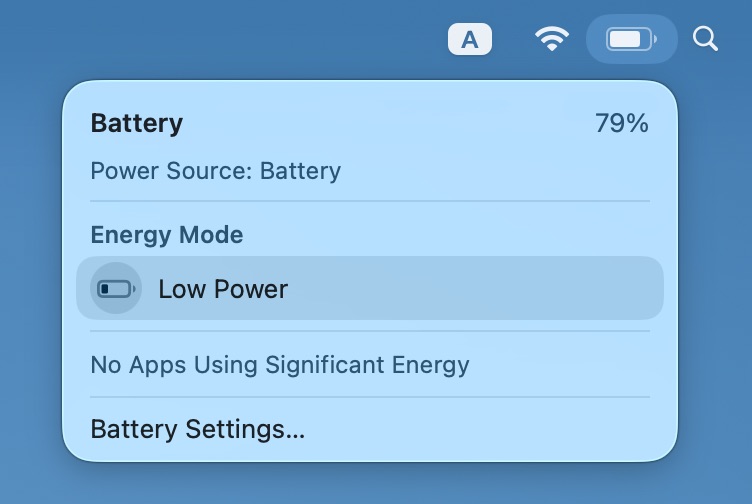
This is the most likely culprit, and it takes 30 seconds to check.
Open System Settings → Battery. Look at the “Low Power Mode” dropdown — it has four options:
- Never — your Mac runs at full performance on battery
- Always — permanently capped
- Only on Battery — capped whenever you’re unplugged
- Only on Power Adapter — capped when plugged in (rarely useful)

Change it to Never, at least for the “On Battery” setting. This is the single tweak that will make the biggest difference for most people.
A common scenario: you turned on Low Power Mode during a long flight or a day of meetings, plugged in when you got home, and forgot to switch it back. The toggle survived, but your performance didn’t.
Quick sanity check: if your MacBook feels fast on AC power but slow on battery, and Low Power Mode is already set to Never, move on to Step 2. Something else is eating your CPU.
Step 2: Hunt Down the CPU Hog
If Low Power Mode isn’t the problem and your MacBook feels warm or hot while sluggish, something is working your processor harder than it should. The fix is to find it and stop it.
Open Activity Monitor (search for it in Spotlight with Cmd + Space, or find it in Applications → Utilities). Switch to the CPU tab and click the % CPU column header to sort by usage, highest first.
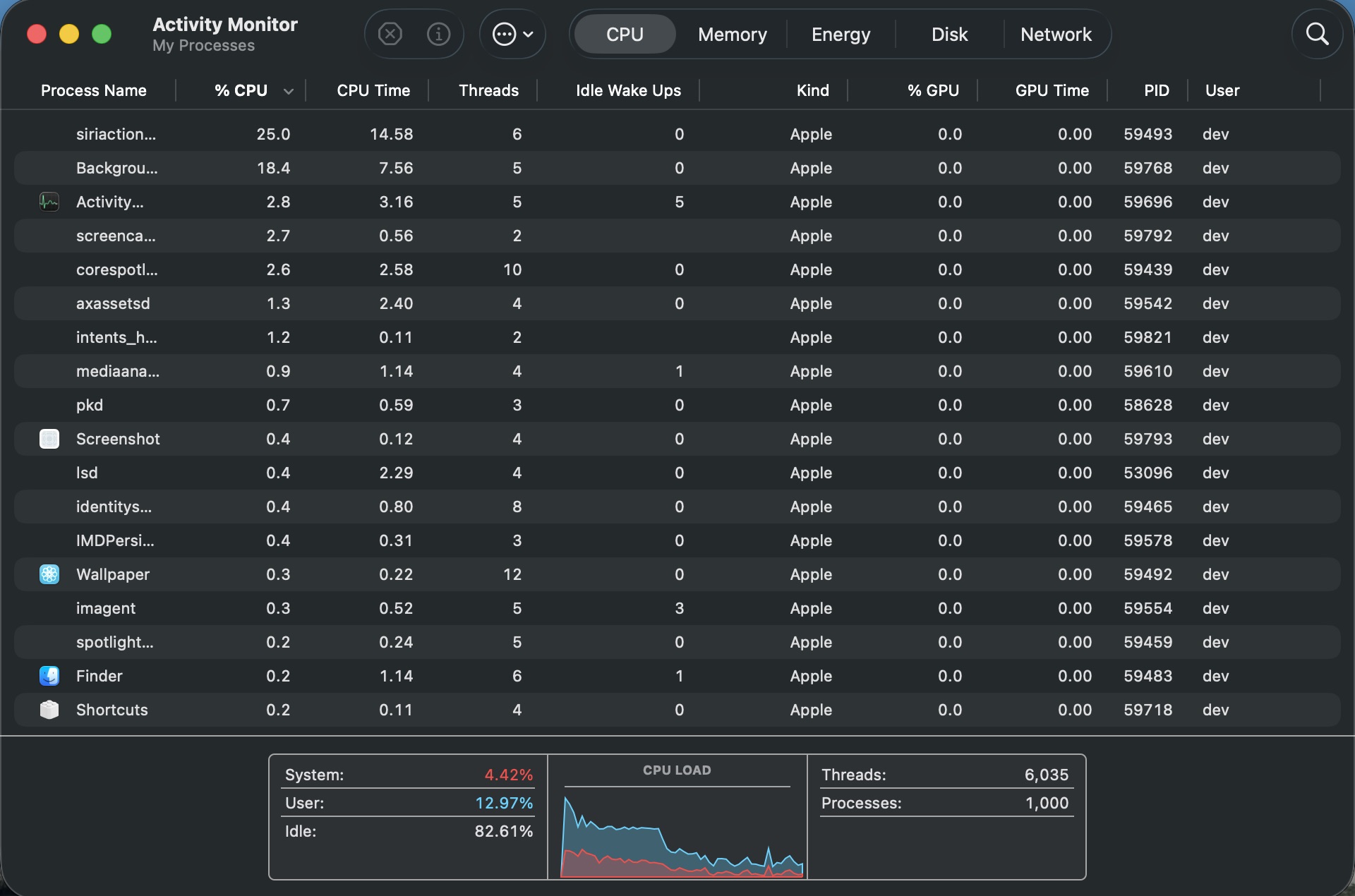
What you’re looking for: any process consistently sitting above 30–40% CPU when you’re not actively doing anything heavy. Common offenders:
- AI coding assistants running inside VS Code. Plugins like GitHub Copilot, Cursor’s inline suggestions, or local LLM tools can quietly keep a CPU core warm in the background — even when you’re not typing. If you see a process named something like
copilot-agentorCode Helper (Renderer)eating cycles, restart VS Code. - Browser extensions gone rogue. A single misbehaving Chrome or Safari extension — ad blockers with broken filter lists, cryptocurrency miners hiding in seemingly innocent extensions, accessibility tools that poll too aggressively — can pin a core at 100%. Use the browser’s built-in Task Manager (in Chrome:
Window→Task Manager) to narrow it down. - Spotlight re-indexing. If you just updated macOS or plugged in a new external drive,
mds_storesandmdworkerprocesses may spike for hours. This is temporary and will resolve on its own.
Once you identify the suspect, quit the parent application or force-quit the process. If the CPU immediately drops and your MacBook cools down, you’ve found it.
Step 3: The Nuclear Option — Close Everything or Reboot
Sometimes the CPU hog isn’t one obvious process — it’s the cumulative weight of a dozen smaller ones. You have 40 Chrome tabs, Slack, Spotify, a Docker container you forgot about, and three Electron apps you opened three weeks ago and never closed. None of them is a disaster alone, but together they keep your MacBook in a permanent state of low-grade struggle.
The simplest fix: close every app you’re not actively using. Check your menu bar for background utilities you forgot were running. If you’re not sure what’s safe to close, just reboot.
A reboot clears RAM, terminates stuck processes, and resets the CPU scheduler’s state. On Apple Silicon, it’s also the equivalent of what used to be an SMC reset — the system management controller reset that Intel Macs sometimes needed for power-related issues. On M-series chips, there’s no separate SMC to reset; a full shutdown and cold boot achieves the same thing.
What Won’t Fix This (And Why People Try)
Before you go down rabbit holes: replacing your battery won’t fix a CPU that’s being intentionally throttled. If your battery health shows “Normal” (check under System Settings → Battery → Battery Health), a new battery won’t change anything. Same goes for running sudo purge in Terminal or installing “Mac cleaner” apps — they address symptoms that aren’t actually your problem.
The cause of battery-related slowness is almost always one of the three things above: Low Power Mode is on, a rogue app is chewing CPU, or too many things are running at once. Start there.
One More Thing: When to Actually Worry
If you’ve tried all three steps and your MacBook is still slow on battery, and you notice the battery percentage dropping unusually fast (say, 20% in under 30 minutes of light use), you might have a hardware issue. A failing battery can cause voltage instability that forces macOS into aggressive throttling, even without Low Power Mode.
In that case, check your battery cycle count and maximum capacity in System Information (hold Option and click the Apple menu → System Information → Power). Anything above 1,000 cycles or below 80% design capacity is worth having Apple run diagnostics on.
But for 9 out of 10 people, the fix is simpler than that — and it starts with a trip to the Battery settings panel.
If your MacBook is several years old, it may struggle to run certain programs even with a healthy battery. Consider checking out the latest MacBook models.